Its always a tedious task to set path in java every time we restart our pc. Here is how to do that once so that u don't need to do this boring process again.
Steps :
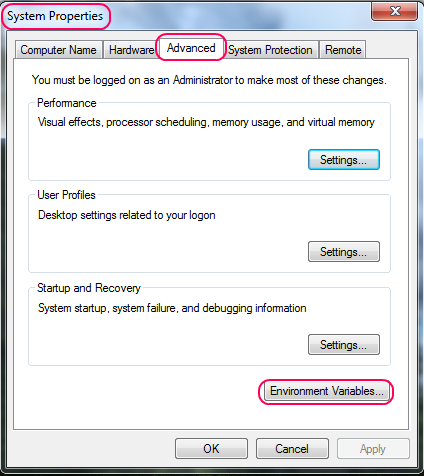
1) Go to System Properties (Shortcut : Press Windows Key + Pause Break).
2) Now Go to "Advanced" Tab.
3) Click on Environment Variables... (See Image Below,Click to Enlarge ) .
4) Under "System Variables" scroll to "Path" and click "Edit".
5) Now what is present in that leave it as it is ( Don't delete any thing but just add after that) and add the following which is in quotes(without quotes) {As shown in image} :
";C:\Program Files\Java\jdk1.6.0\bin"
6)Note:Replace the above line with your path of jdk but add a semicolon first as i have done above
7)Click Ok,Again Ok,Again OK.
You are done.....
Showing posts with label Windows. Show all posts
Sunday, June 13, 2010
Friday, May 28, 2010
Stupid Tip : Getting your screen resolution in Windows
Sometimes we need to know our screen resolution . There are 2 ways :
1st way) Right Click in an empty area on desktop & Click on screen resolution.
2nd way ) Open run dialog (Press winkey +R).
* Type dxdiag & Click OK.
* Goto Display tab to get screen Resolution.
Have Fun......
1st way) Right Click in an empty area on desktop & Click on screen resolution.
2nd way ) Open run dialog (Press winkey +R).
* Type dxdiag & Click OK.
* Goto Display tab to get screen Resolution.
Have Fun......
Thursday, May 20, 2010
Windows 7 : Adding MyComputer shortcut to windows 7 taskbar/superbar
In Windows 7 we have an explorer shortcut in the superbar which opens up in "Libraries".We always want have a shortcut in Superbar which would Open up in "My Computer".
Here is how to do so :
* First step is to delete that bad Libraries shortcut.
* Right Click On libraries shortcut & choose "Unpin this Program from taskbar".
* Now Right Click On desktop & choose New - Shortcut .
* In shortcut location type "C:\Windows\explorer.exe shell:MyComputerFolder".
* Click Next & Type shortcut name as "Computer".
* A shortcut to My computer comes on Your Desktop.
* Now Right Click this icon on desktop and choose "Properties".
* Click On Change Icon .
* To get My Computer Icon browse to file : "c:\windows\system32\imageres.dll".
* After Choosing My Computer Icon Click OK - Apply - OK.
* Now Right Click On This Icon & Choose Pin To Taskbar .
* U get My Computer in taskbar.
Have Funnnnnnnnnn.............................
Here is how to do so :
* First step is to delete that bad Libraries shortcut.
* Right Click On libraries shortcut & choose "Unpin this Program from taskbar".
* Now Right Click On desktop & choose New - Shortcut .
* In shortcut location type "C:\Windows\explorer.exe shell:MyComputerFolder".
* Click Next & Type shortcut name as "Computer".
* A shortcut to My computer comes on Your Desktop.
* Now Right Click this icon on desktop and choose "Properties".
* Click On Change Icon .
* To get My Computer Icon browse to file : "c:\windows\system32\imageres.dll".
* After Choosing My Computer Icon Click OK - Apply - OK.
* Now Right Click On This Icon & Choose Pin To Taskbar .
* U get My Computer in taskbar.
Have Funnnnnnnnnn.............................
Labels:
Customization,
System,
Tweaking,
Windows,
Windows 7
Sunday, May 16, 2010
Registry Trick : Adding 'Edit With Notepad' for every file in Right-Click Menu
Usually we open an unknown file type with "Notepad" so it would be nice to add "Edit with Notepad" option in right click menu of every file type.
Here we go :
* Open Run Dialog (Press Window Key + R).
* Type regedit & press enter
* The Registry Editor Opens Up.
* In Registry Editor goto "HKEY_CLASSES_ROOT\*\shell" .
* In right side pane right Click : New - Key.
* Type : 'Edit With Notepad' (without quotes) as key name .
* Now Click On 'Edit with Notepad' key and in right hand pane right click : New - String Value.
* Type Value Name : Icon
* Now Double Click 'Icon' string value and type : "notepad.exe,0" as value data.
* Right Click On 'Edit With Notepad' Key .
* Choose New - key.
* Type Key Name - command.
* In right side pane of command key double click 'Default' and type : notepad.exe "%1" (With Quotes).
* Click OK.
* Close Regedit.
* Now Right Click Any file & u have edit with notepad option for it.
Have Fun...
For simpler option download the registry file to do all this for you....
Download here
Here we go :
* Open Run Dialog (Press Window Key + R).
* Type regedit & press enter
* The Registry Editor Opens Up.
* In Registry Editor goto "HKEY_CLASSES_ROOT\*\shell" .
* In right side pane right Click : New - Key.
* Type : 'Edit With Notepad' (without quotes) as key name .
* Now Click On 'Edit with Notepad' key and in right hand pane right click : New - String Value.
* Type Value Name : Icon
* Now Double Click 'Icon' string value and type : "notepad.exe,0" as value data.
* Right Click On 'Edit With Notepad' Key .
* Choose New - key.
* Type Key Name - command.
* In right side pane of command key double click 'Default' and type : notepad.exe "%1" (With Quotes).
* Click OK.
* Close Regedit.
* Now Right Click Any file & u have edit with notepad option for it.
Have Fun...
For simpler option download the registry file to do all this for you....
Download here
Registry Trick : Adding 'Control Panel' Option to 'My Computer'
It is always handy to have an assortment of shortcuts as 'Control Panel' in My Computer.Here is how to do so :-
*Press WinKey + R (Opens Run Dialog)
*Type "regedit" (without quotes)
*The Registry Editor Opens Up.
*Goto "HKEY_LOCAL_MACHINE\SOFTWARE\Microsoft\Windows\CurrentVersion\Explorer\MyComputer\NameSpace" .
*In right hand empty space : Right Click and choose New - Key.
*Type Name as : "{21EC2020-3AEA-1069-A2DD-08002B30309D}" (without quotes)
*Close Regedit.
*You get Control Panel in my computer.
Have Funnnn.............
Or
Download reg file to do this.
It is always handy to have an assortment of shortcuts as 'Control Panel' in My Computer.Here is how to do so :-
*Press WinKey + R (Opens Run Dialog)
*Type "regedit" (without quotes)
*The Registry Editor Opens Up.
*Goto "HKEY_LOCAL_MACHINE\SOFTWARE\Microsoft\Windows\CurrentVersion\Explorer\MyComputer\NameSpace" .
*In right hand empty space : Right Click and choose New - Key.
*Type Name as : "{21EC2020-3AEA-1069-A2DD-08002B30309D}" (without quotes)
*Close Regedit.
*You get Control Panel in my computer.
Have Funnnn.............
Or
Download reg file to do this.
Tuesday, May 11, 2010
Registry Trick : Adding 'Recycle Bin' Option to 'My Computer'
It is always handy to have an assortment of shortcuts as 'Recycle Bin' in My Computer.Here is how to do so :-
*Press WinKey + R (Opens Run Dialog)
*Type "regedit" (without quotes)
*The Registry Editor Opens Up.
*Goto "HKEY_LOCAL_MACHINE\SOFTWARE\Microsoft\Windows\CurrentVersion\Explorer\MyComputer\NameSpace" .
*In right hand empty space : Right Click and choose New - Key.
*Type Name as : "{645FF040-5081-101B-9F08-00AA002F954E}" (without quotes)
*Close Regedit.
*You get Recycle Bin in my computer.
Have Funnnn.............
Or
Download reg file to do this.
*Press WinKey + R (Opens Run Dialog)
*Type "regedit" (without quotes)
*The Registry Editor Opens Up.
*Goto "HKEY_LOCAL_MACHINE\SOFTWARE\Microsoft\Windows\CurrentVersion\Explorer\MyComputer\NameSpace" .
*In right hand empty space : Right Click and choose New - Key.
*Type Name as : "{645FF040-5081-101B-9F08-00AA002F954E}" (without quotes)
*Close Regedit.
*You get Recycle Bin in my computer.
Have Funnnn.............
Or
Download reg file to do this.
Labels:
Customization,
Registry,
Vista,
Windows,
Windows 7
Sunday, May 9, 2010
Resource Hacker : A brief Intro
The best software I ever came through . Here is an 'Intro' about that and a download Link .
What is Resource HackerTM ?
Resource HackerTM is a freeware utility to view, modify, rename, add, delete and extract resources in 32bit Windows executables and resource files (*.res). It incorporates an internal resource script compiler and decompiler and works on Win95, Win98, WinME, WinNT, Win2000 and WinXP operating systems.
Viewing Resources: Cursor, Icon, Bitmap, GIF, AVI, and JPG resource images can be viewed. WAV and MIDI audio resources can be played. Menus, Dialogs, MessageTables, StringTables, Accelerators, Delphi Forms, and VersionInfo resources can be viewed as decompiled resource scripts. Menus and Dialogs can also be viewed as they would appear in a running application.
Saving Resources: Resources can be saved as image files (*.ico, *.bmp etc), as script files (*.rc), as binary resource files (*.res), or as untyped binary files (*.bin).
Modifying Resources: Resources can be modified by replacing the resource with a resource located in another file (*.ico, *.bmp, *.res etc) or by using the internal resource script compiler (for menus, dialogs etc). Dialog controls can also be visually moved and/or resized by clicking and dragging the respective dialog controls prior to recompiling with the internal compiler.
Adding Resources: Resources can be added to an application by copying them from external resource files (*.res).
Deleting Resources: Most compilers add resources into applications which are never used by the application. Removing unused resources can reduce an application's size.
The latest version is 3.5.2 beta which can be downloaded from Here..
What is Resource HackerTM ?
Resource HackerTM is a freeware utility to view, modify, rename, add, delete and extract resources in 32bit Windows executables and resource files (*.res). It incorporates an internal resource script compiler and decompiler and works on Win95, Win98, WinME, WinNT, Win2000 and WinXP operating systems.
Viewing Resources: Cursor, Icon, Bitmap, GIF, AVI, and JPG resource images can be viewed. WAV and MIDI audio resources can be played. Menus, Dialogs, MessageTables, StringTables, Accelerators, Delphi Forms, and VersionInfo resources can be viewed as decompiled resource scripts. Menus and Dialogs can also be viewed as they would appear in a running application.
Saving Resources: Resources can be saved as image files (*.ico, *.bmp etc), as script files (*.rc), as binary resource files (*.res), or as untyped binary files (*.bin).
Modifying Resources: Resources can be modified by replacing the resource with a resource located in another file (*.ico, *.bmp, *.res etc) or by using the internal resource script compiler (for menus, dialogs etc). Dialog controls can also be visually moved and/or resized by clicking and dragging the respective dialog controls prior to recompiling with the internal compiler.
Adding Resources: Resources can be added to an application by copying them from external resource files (*.res).
Deleting Resources: Most compilers add resources into applications which are never used by the application. Removing unused resources can reduce an application's size.
The latest version is 3.5.2 beta which can be downloaded from Here..
Labels:
Resource Hacker,
Tweaking,
Vista,
Windows,
Windows 7
Saturday, May 8, 2010
Command Prompt : All Command Prompt Commands
Command Prompt is best tool in windows.
Here are some of its commands .
ASSOC Displays or modifies file extension associations.
ATTRIB Displays or changes file attributes.
BREAK Sets or clears extended CTRL+C checking.
BCDEDIT Sets properties in boot database to control boot loading.
CACLS Displays or modifies access control lists (ACLs) of files.
CALL Calls one batch program from another.
CD Displays the name of or changes the current directory.
CHCP Displays or sets the active code page number.
CHDIR Displays the name of or changes the current directory.
CHKDSK Checks a disk and displays a status report.
CHKNTFS Displays or modifies the checking of disk at boot time.
CLS Clears the screen.
CMD Starts a new instance of the Windows command interpreter.
COLOR Sets the default console foreground and background colors.
COMP Compares the contents of two files or sets of files.
COMPACT Displays or alters the compression of files on NTFS partitions.
CONVERT Converts FAT volumes to NTFS. You cannot convert the
current drive.
COPY Copies one or more files to another location.
DATE Displays or sets the date.
DEL Deletes one or more files.
DIR Displays a list of files and subdirectories in a directory.
DISKCOMP Compares the contents of two floppy disks.
DISKCOPY Copies the contents of one floppy disk to another.
DISKPART Displays or configures Disk Partition properties.
DOSKEY Edits command lines, recalls Windows commands, and
creates macros.
DRIVERQUERY Displays current device driver status and properties.
ECHO Displays messages, or turns command echoing on or off.
ENDLOCAL Ends localization of environment changes in a batch file.
ERASE Deletes one or more files.
EXIT Quits the CMD.EXE program (command interpreter).
FC Compares two files or sets of files, and displays the
differences between them.
FIND Searches for a text string in a file or files.
FINDSTR Searches for strings in files.
FOR Runs a specified command for each file in a set of files.
FORMAT Formats a disk for use with Windows.
FSUTIL Displays or configures the file system properties.
FTYPE Displays or modifies file types used in file extension
associations.
GOTO Directs the Windows command interpreter to a labeled line in
a batch program.
GPRESULT Displays Group Policy information for machine or user.
GRAFTABL Enables Windows to display an extended character set in
graphics mode.
HELP Provides Help information for Windows commands.
ICACLS Display, modify, backup, or restore ACLs for files and
directories.
IF Performs conditional processing in batch programs.
LABEL Creates, changes, or deletes the volume label of a disk.
MD Creates a directory.
MKDIR Creates a directory.
MKLINK Creates Symbolic Links and Hard Links
MODE Configures a system device.
MORE Displays output one screen at a time.
MOVE Moves one or more files from one directory to another
directory.
OPENFILES Displays files opened by remote users for a file share.
PATH Displays or sets a search path for executable files.
PAUSE Suspends processing of a batch file and displays a message.
POPD Restores the previous value of the current directory saved by
PUSHD.
PRINT Prints a text file.
PROMPT Changes the Windows command prompt.
PUSHD Saves the current directory then changes it.
RD Removes a directory.
RECOVER Recovers readable information from a bad or defective disk.
REM Records comments (remarks) in batch files or CONFIG.SYS.
REN Renames a file or files.
RENAME Renames a file or files.
REPLACE Replaces files.
RMDIR Removes a directory.
ROBOCOPY Advanced utility to copy files and directory trees
SET Displays, sets, or removes Windows environment variables.
SETLOCAL Begins localization of environment changes in a batch file.
SC Displays or configures services (background processes).
SCHTASKS Schedules commands and programs to run on a computer.
SHIFT Shifts the position of replaceable parameters in batch files.
SHUTDOWN Allows proper local or remote shutdown of machine.
SORT Sorts input.
START Starts a separate window to run a specified program or command.
SUBST Associates a path with a drive letter.
SYSTEMINFO Displays machine specific properties and configuration.
TASKLIST Displays all currently running tasks including services.
TASKKILL Kill or stop a running process or application.
TIME Displays or sets the system time.
TITLE Sets the window title for a CMD.EXE session.
TREE Graphically displays the directory structure of a drive or
path.
TYPE Displays the contents of a text file.
VER Displays the Windows version.
VERIFY Tells Windows whether to verify that your files are written
correctly to a disk.
VOL Displays a disk volume label and serial number.
XCOPY Copies files and directory trees.
WMIC Displays WMI information inside interactive command shell.
Here are some of its commands .
ASSOC Displays or modifies file extension associations.
ATTRIB Displays or changes file attributes.
BREAK Sets or clears extended CTRL+C checking.
BCDEDIT Sets properties in boot database to control boot loading.
CACLS Displays or modifies access control lists (ACLs) of files.
CALL Calls one batch program from another.
CD Displays the name of or changes the current directory.
CHCP Displays or sets the active code page number.
CHDIR Displays the name of or changes the current directory.
CHKDSK Checks a disk and displays a status report.
CHKNTFS Displays or modifies the checking of disk at boot time.
CLS Clears the screen.
CMD Starts a new instance of the Windows command interpreter.
COLOR Sets the default console foreground and background colors.
COMP Compares the contents of two files or sets of files.
COMPACT Displays or alters the compression of files on NTFS partitions.
CONVERT Converts FAT volumes to NTFS. You cannot convert the
current drive.
COPY Copies one or more files to another location.
DATE Displays or sets the date.
DEL Deletes one or more files.
DIR Displays a list of files and subdirectories in a directory.
DISKCOMP Compares the contents of two floppy disks.
DISKCOPY Copies the contents of one floppy disk to another.
DISKPART Displays or configures Disk Partition properties.
DOSKEY Edits command lines, recalls Windows commands, and
creates macros.
DRIVERQUERY Displays current device driver status and properties.
ECHO Displays messages, or turns command echoing on or off.
ENDLOCAL Ends localization of environment changes in a batch file.
ERASE Deletes one or more files.
EXIT Quits the CMD.EXE program (command interpreter).
FC Compares two files or sets of files, and displays the
differences between them.
FIND Searches for a text string in a file or files.
FINDSTR Searches for strings in files.
FOR Runs a specified command for each file in a set of files.
FORMAT Formats a disk for use with Windows.
FSUTIL Displays or configures the file system properties.
FTYPE Displays or modifies file types used in file extension
associations.
GOTO Directs the Windows command interpreter to a labeled line in
a batch program.
GPRESULT Displays Group Policy information for machine or user.
GRAFTABL Enables Windows to display an extended character set in
graphics mode.
HELP Provides Help information for Windows commands.
ICACLS Display, modify, backup, or restore ACLs for files and
directories.
IF Performs conditional processing in batch programs.
LABEL Creates, changes, or deletes the volume label of a disk.
MD Creates a directory.
MKDIR Creates a directory.
MKLINK Creates Symbolic Links and Hard Links
MODE Configures a system device.
MORE Displays output one screen at a time.
MOVE Moves one or more files from one directory to another
directory.
OPENFILES Displays files opened by remote users for a file share.
PATH Displays or sets a search path for executable files.
PAUSE Suspends processing of a batch file and displays a message.
POPD Restores the previous value of the current directory saved by
PUSHD.
PRINT Prints a text file.
PROMPT Changes the Windows command prompt.
PUSHD Saves the current directory then changes it.
RD Removes a directory.
RECOVER Recovers readable information from a bad or defective disk.
REM Records comments (remarks) in batch files or CONFIG.SYS.
REN Renames a file or files.
RENAME Renames a file or files.
REPLACE Replaces files.
RMDIR Removes a directory.
ROBOCOPY Advanced utility to copy files and directory trees
SET Displays, sets, or removes Windows environment variables.
SETLOCAL Begins localization of environment changes in a batch file.
SC Displays or configures services (background processes).
SCHTASKS Schedules commands and programs to run on a computer.
SHIFT Shifts the position of replaceable parameters in batch files.
SHUTDOWN Allows proper local or remote shutdown of machine.
SORT Sorts input.
START Starts a separate window to run a specified program or command.
SUBST Associates a path with a drive letter.
SYSTEMINFO Displays machine specific properties and configuration.
TASKLIST Displays all currently running tasks including services.
TASKKILL Kill or stop a running process or application.
TIME Displays or sets the system time.
TITLE Sets the window title for a CMD.EXE session.
TREE Graphically displays the directory structure of a drive or
path.
TYPE Displays the contents of a text file.
VER Displays the Windows version.
VERIFY Tells Windows whether to verify that your files are written
correctly to a disk.
VOL Displays a disk volume label and serial number.
XCOPY Copies files and directory trees.
WMIC Displays WMI information inside interactive command shell.
Windows 7/Vista Trick : Adding the good old run option to start menu : Manual Way
To add run option to Start menu do the following :
* Press winkey + R to open run menu.
*Type : Regedit
*Press Enter
*The Registry editor windows opens up:
* Move to : HKEY_CURRENT_USER\Software\Microsoft\Windows\CurrentVersion\Explorer\Advanced
* In right hand pane find entry : Start_ShowRun
* Double click on Start_ShowRun and type 1 .
* Click ok ,Press f5.
* Close regedit
* Open run by windows key + r .
* type cmd
* Command prompt window appears .
* type : taskkill /F /IM explorer.exe
* Now type : explorer.exe
* You see run option added .
Have funn..............
(Note : Playing with regedit is a dangerous thing for your computer if improperly done however its lots of fun.
The author holds no liability if something goes wrong )
* Press winkey + R to open run menu.
*Type : Regedit
*Press Enter
*The Registry editor windows opens up:
* Move to : HKEY_CURRENT_USER\Software\Microsoft\Windows\CurrentVersion\Explorer\Advanced
* In right hand pane find entry : Start_ShowRun
* Double click on Start_ShowRun and type 1 .
* Click ok ,Press f5.
* Close regedit
* Open run by windows key + r .
* type cmd
* Command prompt window appears .
* type : taskkill /F /IM explorer.exe
* Now type : explorer.exe
* You see run option added .
Have funn..............
(Note : Playing with regedit is a dangerous thing for your computer if improperly done however its lots of fun.
The author holds no liability if something goes wrong )
Labels:
Customization,
Registry,
Vista,
Windows,
Windows 7
Thursday, April 8, 2010
Displaying your name in taskbar
Open Control Panel > Regional & Languages > Options > Time Symbol
Enter UR Name there and click apply
Thatz ALL!!!!!!!
Enter UR Name there and click apply
Thatz ALL!!!!!!!
Rotating PC screen(Windows)
Press Ctrl + Alt +(Any Arrow key)
example : Ctrl +Alt+Down key to turn upside down
Subscribe to:
Posts (Atom)


